Chapter 3 · GTK 4 with PyGObject
More GTK 4
Every listing in this chapter is a file under
examples/gtk4/. They are run on each build, so if one of them stops working the build says so.
Introduction
Getting Started with GTK 4 covered the widgets a window is made of. This chapter covers the machinery around them: showing a list of things, letting the user pick a file, moving data around by dragging it, putting a picture on screen, and describing an interface in a file instead of in code.
The list section is the long one, and it is worth the time. GTK 4’s list widgets
look intimidating next to gtk.ListStore and turn out to be simpler once the
pieces have names — and they are the same pieces that drive drop downs, grid views
and the sidebar of every GNOME application.
Lists and tables
GtkTreeView, GtkListStore and GtkTreeStore are deprecated in GTK 4. They are
replaced by a set of small parts that snap together:
- A list model
- holds the data.
Gio.ListStoreis the usual one. It holds GObjects — not tuples, not strings — so each row is an object with properties. - A factory
- builds row widgets and fills them in.
Gtk.SignalListItemFactorydoes this with two signals:setupcreates an empty row,bindpoints an existing row at an item. - A selection model
- wraps the list model and tracks what is selected.
Gtk.SingleSelection,Gtk.MultiSelection,Gtk.NoSelection. - A view
- draws it.
Gtk.ListViewfor a list,Gtk.ColumnViewfor a table,Gtk.GridViewfor tiles.
They chain: store → (filter) → (sort) → selection → view.
The reason for all these parts is recycling. A GtkTreeView built a row widget
for every row you had. A GtkListView builds enough row widgets to fill the visible
area and reuses them as you scroll, which is why it can hold a million items without
noticing. setup runs once per widget; bind runs every time a widget is pointed
at a different item.
The item type
Rows are objects, so start by defining one:
class Task(GObject.Object):
    __gtype_name__ = "Task"

    title = GObject.Property(type=str, default="")
    done = GObject.Property(type=bool, default=False)

    def __init__(self, title, done=False):
        super().__init__(title=title, done=done)
GObject.Property rather than a plain attribute, and __gtype_name__ so the type
has a name on the C side. Both matter: property expressions, sorters, filters and
bind_property all reach data through the GObject property system, and none of them
can see a plain Python attribute.
A plain Python attribute still works for anything you only ever read in Python. Use properties for the values the view needs to know about.
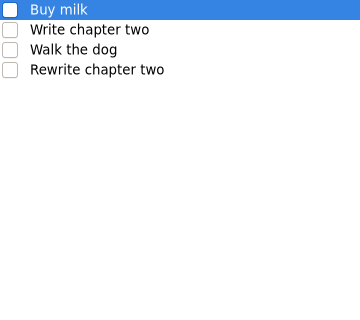
A list
store = Gio.ListStore(item_type=Task)
for title in ("Buy milk", "Write chapter two", "Walk the dog"):
    store.append(Task(title))

factory = Gtk.SignalListItemFactory()
factory.connect("setup", on_setup)
factory.connect("bind", on_bind)

selection = Gtk.SingleSelection(model=store)
view = Gtk.ListView(model=selection, factory=factory)
The factory handlers:
def on_setup(_factory, list_item):
    box = Gtk.Box(orientation=Gtk.Orientation.HORIZONTAL, spacing=12)
    box.append(Gtk.CheckButton())
    box.append(Gtk.Label(xalign=0))
    list_item.set_child(box)


def on_bind(_factory, list_item):
    task = list_item.get_item()
    box = list_item.get_child()
    check, label = box.get_first_child(), box.get_last_child()
    label.set_text(task.title)
    check.set_active(task.done)
Two rules follow from recycling, and breaking either produces the same symptom — data from the wrong row appearing in a row:
Never create widgets in bind. It runs on every scroll. Create in setup,
fill in bind.
Undo in unbind whatever you did in bind. If bind connects a signal or
creates a binding, the row keeps it when it is recycled onto a different item. That
is what unbind is for:
def on_bind(_factory, list_item):
    ...
    list_item.binding = check.bind_property(
        "active", task, "done", GObject.BindingFlags.BIDIRECTIONAL
    )


def on_unbind(_factory, list_item):
    binding = getattr(list_item, "binding", None)
    if binding is not None:
        binding.unbind()
        list_item.binding = None
bind_property is worth knowing on its own: it keeps two GObject properties in
sync with no callback at all. Here, ticking the check button writes straight
through to task.done, and changing task.done in code moves the check button.
A list view scrolls, but it does not scroll itself — put it in a
Gtk.ScrolledWindow.
The full example is examples/gtk4/list-view.py.
A sortable table
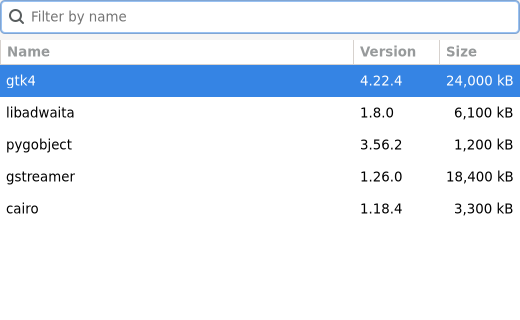
Gtk.ColumnView is a list view with columns. Each column has its own factory, so
each cell in that column is built and filled the same way:
factory = Gtk.SignalListItemFactory()
factory.connect("setup", setup)
factory.connect("bind", bind)

column = Gtk.ColumnViewColumn(title="Name", factory=factory)
column.set_expand(True)
view.append_column(column)
Sorting is done by the model, not the view. A column gets a sorter; the view
combines the sorters of whichever column headers were clicked; a Gtk.SortListModel
sorts the data through that combined sorter:
expression = Gtk.PropertyExpression.new(Package, None, "name")
column.set_sorter(Gtk.StringSorter(expression=expression))
...
sorted_model = Gtk.SortListModel(model=store)
sorted_model.set_sorter(view.get_sorter())
A Gtk.Expression is a compiled way of reading a value out of an object.
Gtk.PropertyExpression.new(Package, None, "name") means “the name property of a
Package”, and it is evaluated in C, so sorting a large list does not run Python
per comparison. Use Gtk.NumericSorter for numbers — a Gtk.StringSorter on a size
column will happily sort 1,000 before 900.
Filtering works the same way, one model further up the chain:
text_filter = Gtk.StringFilter(
    expression=Gtk.PropertyExpression.new(Package, None, "name"),
    match_mode=Gtk.StringFilterMatchMode.SUBSTRING,
)
filtered = Gtk.FilterListModel(model=store, filter=text_filter)

search = Gtk.SearchEntry()
search.connect("search-changed", lambda e: text_filter.set_search(e.get_text()))
The whole chain is store → filter → sort → selection → view, and each link is a list model in its own right. Nothing copies the data; each wrapper is a view onto the one below. That is why you can filter a list while a selection is live and get sensible behaviour.
For a filter that Python has to decide, use Gtk.CustomFilter:
recent = Gtk.CustomFilter.new(lambda item: item.size > 5_000)
The full example is examples/gtk4/column-view.py.
Choosing between the views
Gtk.ListView- one column of rows, uniform height, arbitrarily long.
Gtk.ColumnView- a table with sortable, resizable columns.
Gtk.GridView- tiles, for thumbnails.
Gtk.ListBox- rows you add as widgets, with no factory and no recycling. Fine for a settings
page or a sidebar of a dozen items; wrong for anything that grows. libadwaita’s
rows (
Adw.ActionRow,Adw.SwitchRow,Adw.EntryRow) go in one of these.
If the list is short and fixed, Gtk.ListBox is much less code. If it comes from
data, use a list view.
File dialogs
GtkFileChooserDialog is deprecated. Gtk.FileDialog replaces it, with the same
asynchronous shape as Gtk.AlertDialog:
dialog = Gtk.FileDialog(title="Open a file")
dialog.set_filters(text_filters())
dialog.open(window, None, on_opened, label)


def on_opened(dialog, result, label):
    try:
        file = dialog.open_finish(result)
    except GLib.Error:
        return          # cancelled
    print(file.get_path())
There is open(), save(), select_folder() and their plural forms
(open_multiple()), each with a matching *_finish(). All of them raise
GLib.Error when the user cancels.
Filters are a list model of Gtk.FileFilter:
filters = Gio.ListStore(item_type=Gtk.FileFilter)

text = Gtk.FileFilter()
text.set_name("Text files")
text.add_mime_type("text/plain")
text.add_suffix("txt")
filters.append(text)

dialog.set_filters(filters)
You get a GFile, not a path
open_finish() returns a Gio.File. It is tempting to call get_path() and hand
the string to open(), and for a local file that works. It is worth resisting:
ok, contents, _etag = file.load_contents(None)
text = contents.decode("utf-8", "replace")

file.replace_contents(b"...", None, False, Gio.FileCreateFlags.NONE, None)
get_path() returns None for anything that is not a local file — a document on a
remote share, an attachment, a file handed over by the desktop portal. Under
Flatpak, Gtk.FileDialog is answered by the file portal: the user picks a file
in a dialog drawn by the desktop, and your sandbox is granted access to just that
one file. Gio.File handles all of it; a raw path does not.
The full example is examples/gtk4/file-dialog.py.
Drag and drop
Drag and drop moved onto event controllers along with the rest of input handling.
A widget that can be dragged gets a Gtk.DragSource; a widget that can receive gets
a Gtk.DropTarget. There are no drag_source_set() calls and no
drag-data-received signal.
The source says what is being dragged by returning a content provider:
def on_prepare(_source, _x, _y):
    value = GObject.Value(str, text)
    return Gdk.ContentProvider.new_for_value(value)


source = Gtk.DragSource(actions=Gdk.DragAction.COPY)
source.connect("prepare", on_prepare)
label.add_controller(source)
Returning None from prepare refuses the drag, which is how you make some rows
draggable and others not.
Give the drag something visible to carry, or the pointer drags nothing at all:
def on_drag_begin(source, _drag):
    source.set_icon(Gtk.WidgetPaintable.new(label), 0, 0)
The target declares the type it accepts and returns True from drop if it took
the data:
def on_drop(_target, value, _x, _y):
    label.set_text(f"Got: {value}")
    return True


target = Gtk.DropTarget.new(GObject.TYPE_STRING, Gdk.DragAction.COPY)
target.connect("drop", on_drop)
frame.add_controller(target)
enter and leave are where the highlight goes — a drop target that gives no
feedback feels broken even when it works.
Because everything travels as a GValue, dragging your own objects between two
lists in your own program needs no serialisation:
Gdk.ContentProvider.new_for_value(GObject.Value(Task, task)). Dragging to another
application needs a type that application understands: GObject.TYPE_STRING for
text, Gio.File for files.
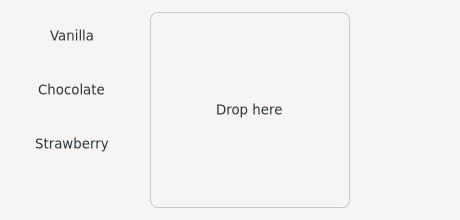
The full example is examples/gtk4/drag-and-drop.py.
Copy and paste
The clipboard is the same content machinery as drag and drop, which is why it belongs here rather than three chapters away. It hangs off the display, so you ask a widget for it:
self.get_clipboard().set(self.entry.get_text())
set() takes a Python value and works out which content formats to advertise.
Underneath it is set_content() with a Gdk.ContentProvider, which is what you
use when you want to offer several formats at once — plain text and HTML, say —
built with Gdk.ContentProvider.new_union().
Reading is asynchronous, and there is no synchronous version to wish for:
def on_paste(self, _button):
    self.get_clipboard().read_text_async(None, self.on_text_ready)


def on_text_ready(self, clipboard, result):
    try:
        text = clipboard.read_text_finish(result)
    except GLib.Error as error:
        self.status.set_text(f"nothing to paste ({error.message})")
        return
    self.status.set_text(text)
That is not API pedantry. On Wayland the clipboard’s contents live in whichever
application owns the selection; fetching them is inter-process communication with
a program that may be busy, may be slow, and may exit halfway through. GTK 3’s
gtk_clipboard_wait_for_text() blocked the main loop on exactly that, and it is
gone. The try is the normal path, not the exceptional one: an empty clipboard,
or one holding a format you did not ask for, arrives as a GLib.Error.
read_texture_async() is the same shape for images, and read_value_async() for
anything else with a registered type.
There are two clipboards on Linux. get_clipboard() is the ordinary one that
Ctrl+C fills. get_primary_clipboard() is the primary selection — filled just by
selecting text, pasted with middle-click. Text widgets already maintain the
primary selection for you; the thing not to do is write to it on Ctrl+C, which
overwrites a selection the user made somewhere else.
The full example is examples/gtk4/clipboard.py.
Images and pictures
There are two widgets, and picking the wrong one is the usual cause of an image that refuses to grow past 16 pixels.
Gtk.Image is for icons. It sizes itself from the icon theme and ignores how
much room it has:
icon = Gtk.Image.new_from_icon_name("dialog-information-symbolic")
icon.set_pixel_size(48)
Gtk.Picture is for content. It scales to the space it is given:
texture = Gdk.Texture.new_from_filename("sample.jpg")
picture = Gtk.Picture.new_for_paintable(texture)
picture.set_content_fit(Gtk.ContentFit.CONTAIN)
picture.set_vexpand(True)
GdkPixbuf still exists and still loads files, but Gdk.Texture is the modern
path: decoded once, held on the GPU, drawn without a copy per frame. Use
Gdk.Texture.new_from_filename() or new_from_resource() unless you need to
manipulate pixels, in which case load a pixbuf and convert with
Gdk.Texture.new_for_pixbuf().
set_content_fit() takes CONTAIN (fit inside, keep aspect), COVER (fill, crop),
FILL (stretch) or SCALE_DOWN (never enlarge).
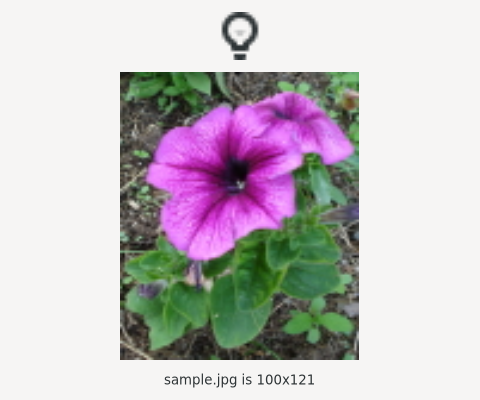
The full example is examples/gtk4/images.py.
Tooltips
button.set_tooltip_text("Save the document")
button.set_tooltip_markup("Save the <b>document</b>")
That is the whole API for the common case. Tooltips belong on icon-only buttons, where they are the only thing naming the action, and they should say what the control does rather than repeating its label.
For a tooltip whose text depends on what is under the pointer, set
has-tooltip and handle query-tooltip.
Building interfaces from UI files
Writing a layout in Python is fine until it is a hundred lines of append(). The
alternative is a .ui file: GTK’s own XML, loaded by Gtk.Builder.
Glade is not an option any more. It never gained GTK 4 support and is unmaintained. What replaced it:
- Write the XML by hand. It is verbose but obvious, and it is what the other tools produce.
- Blueprint — a compact language that compiles to
.ui. Most new GNOME applications use it. - Cambalache — a graphical designer that does support GTK 4 and libadwaita.
The libglade format and gtk-builder-convert are long gone; if you have a .glade
file from the GTK 2 days, it is a rewrite rather than a conversion.
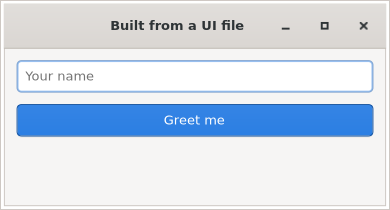
GtkTemplate
You can load a .ui file and pull widgets out of it by id, but the pleasant way is
Gtk.Template, which binds a Python class to a <template> element:
<interface>
  <requires lib="gtk" version="4.0"/>
  <template class="ExampleWindow" parent="GtkApplicationWindow">
    <property name="title">Built from a UI file</property>
    <child type="titlebar">
      <object class="GtkHeaderBar"/>
    </child>
    <property name="child">
      <object class="GtkBox">
        <property name="orientation">vertical</property>
        <child>
          <object class="GtkEntry" id="name_entry">
            <property name="placeholder-text" translatable="yes">Your name</property>
          </object>
        </child>
        <child>
          <object class="GtkButton" id="greet_button">
            <property name="label" translatable="yes">Greet me</property>
            <signal name="clicked" handler="on_greet_clicked" swapped="no"/>
          </object>
        </child>
        <child>
          <object class="GtkLabel" id="greeting"/>
        </child>
      </object>
    </property>
  </template>
</interface>
@Gtk.Template(filename=str(UI_FILE))
class ExampleWindow(Gtk.ApplicationWindow):
    __gtype_name__ = "ExampleWindow"

    name_entry = Gtk.Template.Child()
    greet_button = Gtk.Template.Child()
    greeting = Gtk.Template.Child()

    @Gtk.Template.Callback()
    def on_greet_clicked(self, _button):
        name = self.name_entry.get_text().strip() or "stranger"
        self.greeting.set_text(f"Hello, {name}!")
Three names have to agree, and when they do not the error message is not always helpful:
__gtype_name__on the class must equal theclassattribute of<template>.- Each
Gtk.Template.Child()attribute name must equal anidin the file. - Each
handlernamed in a<signal>must exist on the class and be decorated with@Gtk.Template.Callback().
translatable="yes" marks a string for translation, and xgettext reads it
straight out of the XML — see Internationalization.
Shipping the .ui file next to the .py file works while you develop. For
anything you install, compile the files into a GResource bundle and load them
with Gtk.Template(resource_path=...): one file to install, and the data is
compiled into the binary rather than looked up on disk. That is covered with the
rest of installation in the packaging chapter.
The full example is examples/gtk4/builder/.
Notifications, not status icons
GtkStatusIcon is gone, and the system tray it drew into is not part of GNOME. If
your program needs to say “something finished” while the user is looking at
something else, send a notification:
notification = Gio.Notification.new("Export finished")
notification.set_body("holiday-photos.zip is ready in your Downloads folder.")
notification.set_icon(Gio.ThemedIcon.new("document-save-symbolic"))
notification.add_button("Show it", "app.reveal")
notification.set_default_action("app.reveal")

app.send_notification("export-done", notification)
The buttons name actions, exactly as menu items do — which means the notification can be acted on after your program has exited, and the desktop will start it again to deliver the action.
The string id is a handle: sending again with the same id replaces the earlier
notification rather than stacking a second one, and
app.withdraw_notification("export-done") takes it back.
One catch that costs people an afternoon: the notification only appears if there is
an installed .desktop file whose basename matches the application id
(com.example.Notification.desktop for com.example.Notification). Without it the
call succeeds silently and nothing is shown. Desktop files are in
Desktop Integration.
The full example is examples/gtk4/notification.py.
Summary
- List widgets are four parts: a model of GObjects, a factory, a selection model,
and a view.
setupbuilds a row,bindfills it,unbindundoes whatbinddid. - Sorting and filtering are models wrapped around the store, driven by
Gtk.Expression, so they run in C rather than in Python. - File dialogs are asynchronous and hand you a
Gio.File. Use it rather thanget_path(), and the portal works for free. - Drag and drop is a
Gtk.DragSourceand aGtk.DropTargetadded as controllers, movingGValues. - The clipboard uses the same content types as drag and drop. Writing is immediate; reading is asynchronous and raises when there is nothing to read.
Gtk.Imageis for icons,Gtk.Pictureis for content.- Layouts can live in
.uifiles;Gtk.Templatebinds one to a class. Glade is not part of this any more. - Status icons are gone;
Gio.Notificationcovers what they were used for.
Threads and Asynchronous Work is next: how to do something slow without the window freezing.