Chapter 1 · GTK 4 with PyGObject
Getting Started with GTK 4
Every listing in this chapter is a file under
examples/gtk4/. They are run on each build, so if one of them stops working the build says so.
Introduction
GTK 4 is the toolkit behind GNOME, and PyGObject is how Python talks to it. There
is no separate binding to install and no wrapper library to learn: PyGObject reads
GTK’s introspection data at import time, so the Python API and the C API are the
same API with different punctuation. When the GTK documentation says
gtk_widget_set_visible(), you write widget.set_visible().
If you last wrote GUI code with PyGTK, the shape of this chapter will be familiar
and most of the details will not be. GTK 4 removed a lot: no more
gtk.RadioButton, no more show_all(), no more packing arguments on every
pack_start call, no more gtk.main(). What replaced them is generally smaller,
and this chapter introduces each replacement where the old idiom used to sit.
Alongside GTK 4 sits libadwaita, GNOME’s widget library. GTK gives you buttons and boxes; libadwaita gives you the rows, dialogs and adaptive layouts that make an application look like it belongs on the desktop. You can write GTK 4 without it, and the first half of this chapter does, but the last section shows why you probably do not want to.
What you need installed
GTK 4 and PyGObject come from your distribution, not from PyPI. Installing
PyGObject with pip builds it against whatever GTK you already have and fails
confusingly when you have none, so start with the system packages.
# Debian, Ubuntu
sudo apt install python3-gi python3-gi-cairo gir1.2-gtk-4.0 gir1.2-adw-1

# Fedora
sudo dnf install python3-gobject gtk4 libadwaita

# Arch
sudo pacman -S python-gobject gtk4 libadwaita
Check the result. This prints the running GTK and libadwaita versions and exits:
python3 -c "import gi; gi.require_version('Gtk','4.0'); gi.require_version('Adw','1'); \
  from gi.repository import Gtk, Adw; \
  print('GTK', Gtk.get_major_version(), Gtk.get_minor_version()); \
  print('Adw', Adw.MAJOR_VERSION, Adw.MINOR_VERSION)"
What this book targets
Everything here was written and tested against the GNOME 50 stack:
| Component | Version | Where it comes from |
|---|---|---|
| GTK | 4.22 | your distribution |
| libadwaita | 1.9 | your distribution |
| PyGObject | 3.56 | your distribution |
| Python | 3.12 or later | your distribution |
That is what shipped in March 2026, and what Ubuntu 26.04 LTS and Fedora 44 carry. The book does not chase the newest API for its own sake, and most of it works several releases back — but where a section needs something recent it says which version, like this:
libadwaita 1.4.
Adw.Breakpointneeds it. On older versions the window still works; it just does not adapt.
Two version numbers are worth committing to memory, because they are where the
current idioms arrived: GTK 4.10, which deprecated the blocking dialogs and
introduced the asynchronous ones, and libadwaita 1.5, which introduced
Adw.Dialog. Code older than those two will look noticeably different from
everything in this book.
Python 3.12 is the floor for the examples, which use type statements and modern
generics in their annotations. PyGObject 3.50 is the floor for the async/await
integration in Threads and Asynchronous Work; the
rest of the book does not need it.
This book assumes Wayland
GNOME 50 removed its X11 session. GNOME now runs on Wayland only, and so does the advice in this book. Nothing here is X11-specific, but a few habits carried over from X11 are worth unlearning now rather than debugging later:
- A window cannot position itself. There is no
move(), no way to ask for screen coordinates, and no way to place a window under the pointer. The compositor decides. Dialogs get placed correctly only because you told them which window is their parent — which is why every dialog call in this book passes one. - A window does not know where it is, only how big it is.
- You cannot read the screen or other windows. Screenshots, screen sharing and global shortcuts go through portals, which ask the user. That is Desktop Integration.
- Scaling can be fractional. Do not assume the scale factor is a whole number, and draw in logical units rather than pixels wherever you can. The Cairo chapter comes back to this.
XWayland still runs X11 clients, so an old application keeps working; the point is
that new code should not be written against those assumptions. If you are testing
on a headless machine, the examples run under xvfb-run — that is XWayland’s
territory rather than a recommendation, and it is only how this book’s own build
takes its screenshots.
The two lines at the top of every program
import gi

gi.require_version("Gtk", "4.0")
from gi.repository import Gtk
gi.require_version picks which version of the GTK typelib to load, and it has to
run before the import. Many systems have GTK 3 and GTK 4 installed side by side;
without that call you get whichever one PyGObject finds first, along with a warning
and, sooner or later, a confusing crash. Do the same for every library that has more
than one version in circulation — Adw, Gst, WebKit all need it.
GTK 4 basics
Widgets — what are they?
A widget is a piece of a user interface. Labels, buttons, menus, text entries, sliders, whole scrolling panes — all widgets. If you came from .NET or Qt you would call them controls; the idea is the same.
Two things about GTK 4 widgets are worth knowing before you write any code.
Every widget is a container. In GTK 3, a GtkButton was a GtkContainer that
happened to hold a label. In GTK 4, every widget can have children, and the ones
that hold exactly one child expose it as a property:
button = Gtk.Button()
button.set_child(Gtk.Label(label="Save"))
Widgets are visible by default. GTK 3 required show() on every widget and
show_all() on the window. GTK 4 dropped both. You create widgets, you add them to
a window, and you call present() on the window. Anything you want hidden, you hide
explicitly with set_visible(False).
Creating your first GTK 4 application
A GTK 4 program is a Gtk.Application. It owns the main loop, handles
single-instance behaviour, holds your actions, and knows when the last window has
closed so it can exit.
import sys

import gi

gi.require_version("Gtk", "4.0")
from gi.repository import Gtk


def on_activate(app):
    window = Gtk.ApplicationWindow(application=app, title="Hello World")
    window.set_default_size(320, 120)
    window.set_child(Gtk.Label(label="Hello World!"))
    window.present()


app = Gtk.Application(application_id="com.example.HelloWorld")
app.connect("activate", on_activate)
sys.exit(app.run(sys.argv))
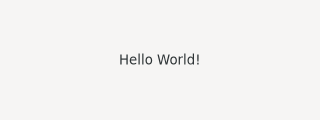
Running it opens a window with a label in it, and closing the window ends the program. Four things are doing work here.
The application id is a reverse-DNS name that identifies your program to the
desktop. It is not decoration: D-Bus activation, the desktop file, notifications,
and the single-instance check all key off it. Use a domain you control; use
com.example.Something while you are experimenting.
The activate signal fires when the application is asked to show itself — on startup, and again if someone launches it a second time. Build your window there, not at import time.
Gtk.ApplicationWindow is a window that knows which application it belongs to.
Passing application=app is what ties the two together; without it the application
has no windows, decides it has nothing to do, and exits immediately.
app.run(sys.argv) starts the main loop and returns an exit status when the last
window closes. This is where gtk.main() went.
Where did
gtk.main()go? You can still get at the loop directly throughGLib.MainLoop, and a few of the examples later in this book do when there is no window involved. For anything with a user interface,Gtk.Applicationis the supported path and gives you actions, accelerators and session integration for free.
Layout — boxes
A window holds one child. To get more than one widget on screen you need a layout
container, and the workhorse is Gtk.Box: a row or a column of widgets.
outer = Gtk.Box(orientation=Gtk.Orientation.VERTICAL, spacing=12)
outer.set_margin_top(12)
outer.set_margin_bottom(12)
outer.set_margin_start(12)
outer.set_margin_end(12)

row = Gtk.Box(orientation=Gtk.Orientation.HORIZONTAL, spacing=6)
row.append(Gtk.Label(label="Hello World!"))
row.append(Gtk.Label(label="Still in the row"))

outer.append(row)
outer.append(Gtk.Button(label="This button is below the row"))

window.set_child(outer)
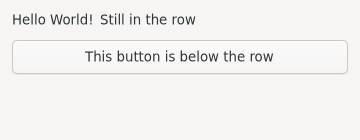
Boxes nest, and nesting is how you build a layout: one box per row or column, each holding widgets or further boxes, with a single top-level box in the window.
The GTK 3 call was box.pack_start(child, expand, fill, padding). GTK 4 has
append() and prepend(), and the three extra arguments moved onto the child
widget itself:
label.set_hexpand(True)          # take any spare horizontal space
label.set_halign(Gtk.Align.START)  # but sit at the start of it
label.set_margin_start(6)        # padding is now a margin
That split takes a moment to get used to and then stops being confusing: expand
asks for space, align says what to do with the space you were given, and margins
are the widget’s own business. Fill is the default — a widget that is given space
uses it unless its alignment says otherwise.
spacing on the box is the gap between children. Margins on the box are the gap
around the outside. Setting four margins by hand gets old, so most real code either
uses libadwaita’s rows, which have their own spacing, or a small helper.
For a grid of widgets rather than a line of them, Gtk.Grid attaches children at a
column and row with a column and row span:
grid = Gtk.Grid(column_spacing=6, row_spacing=6)
grid.attach(Gtk.Label(label="Name"), 0, 0, 1, 1)
grid.attach(Gtk.Entry(), 1, 0, 2, 1)
The full example is examples/gtk4/boxes.py.
Callbacks — reacting to program events
A program that ignores its user is not much of a program. Widgets emit signals when something happens to them, and you connect a Python function to the signals you care about.
def on_button_clicked(button):
    button.set_label("Clicked!")


plain = Gtk.Button(label="Click me")
plain.connect("clicked", on_button_clicked)
The first argument to a callback is always the widget that emitted the signal.
Anything you pass to connect() after the callback is handed back to it unchanged,
which is how you get your own data into the handler:
def on_counter_clicked(button, state):
    state["count"] += 1
    button.set_label(f"Clicked {state['count']} times")


counter = Gtk.Button(label="Clicked 0 times")
counter.connect("clicked", on_counter_clicked, {"count": 0})
Two details save time later.
connect() returns a handler id. Keep it if you will ever need
widget.disconnect(handler_id) — usually because the handler outlives the thing it
updates.
Some things that feel like signals are property notifications. A Gtk.Switch
has no toggled signal; it has an active property, and you watch it with
notify::active:
switch.connect("notify::active", lambda sw, pspec: print(sw.get_active()))
Property-notify handlers take the object and a GParamSpec — that second argument
is nearly always ignored, but it has to be in the signature. Any property on any
GObject can be watched this way, which is more useful than it sounds: it is how you
react to a window being resized, a list selection changing, or a media player
reaching the end of a file.
Callbacks run on the main thread, and while one is running the interface is frozen. Anything slow belongs on a worker thread or in an asynchronous call — see D-Bus and asynchronous work for the patterns.
The full example is examples/gtk4/callbacks.py.
Widgets
The rest of this chapter is a tour of the widgets almost every program uses. Each
one is a runnable file under examples/gtk4/widgets/.
Buttons
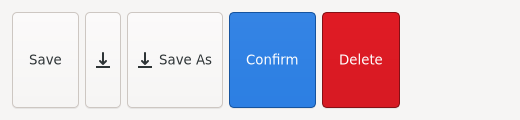
A button carries a label, an icon, or both:
text = Gtk.Button(label="Save")

icon = Gtk.Button(icon_name="document-save-symbolic")
icon.set_tooltip_text("Save")

content = Gtk.Box(orientation=Gtk.Orientation.HORIZONTAL, spacing=6)
content.append(Gtk.Image.new_from_icon_name("document-save-symbolic"))
content.append(Gtk.Label(label="Save As"))
both = Gtk.Button(child=content)
Icon names come from the icon theme, and the -symbolic suffix asks for the
monochrome variant that recolours itself to match the text around it. GTK 3’s stock
items (gtk.STOCK_SAVE and friends) are gone; see
Icon names for the modern names.
GTK ships CSS classes for the two buttons that need to stand out:
suggested = Gtk.Button(label="Confirm")
suggested.add_css_class("suggested-action")

destructive = Gtk.Button(label="Delete")
destructive.add_css_class("destructive-action")
Use them sparingly — one suggested action per dialog — and never use the destructive class for something that is merely annoying to undo.
The full example is examples/gtk4/widgets/buttons.py.
Toggle buttons, check buttons and radio groups
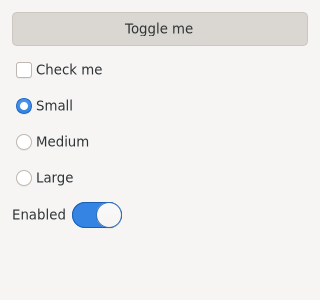
A Gtk.ToggleButton stays pressed. A Gtk.CheckButton is the same idea drawn as a
tick box. Both emit toggled:
toggle = Gtk.ToggleButton(label="Toggle me")
toggle.connect("toggled", lambda b: print(b.get_active()))

check = Gtk.CheckButton(label="Check me")
check.connect("toggled", lambda b: print(b.get_active()))
There is no Gtk.RadioButton in GTK 4. A radio group is several check buttons
joined with set_group(); a check button that belongs to a group draws itself as a
radio button:
first = None
for name in ("Small", "Medium", "Large"):
    option = Gtk.CheckButton(label=name)
    if first is None:
        first = option
        option.set_active(True)
    else:
        option.set_group(first)
    option.connect("toggled", on_toggled)
    box.append(option)
Every member joins the same first button, not the one before it. Chaining them pairwise looks like it works and produces two groups.
Watch out for the double signal: turning one option on turns another off, so a
group of three emits toggled twice per click. If you only care about the option
that became active, check get_active() first and ignore the rest.
A Gtk.Switch is for settings that take effect immediately, and it reports through
its active property rather than a toggled signal:
switch = Gtk.Switch()
switch.connect("notify::active", lambda sw, _p: print(sw.get_active()))
The rule of thumb GNOME uses: a switch turns something on now, a check button records a choice you will confirm later with a button.
The full example is examples/gtk4/widgets/toggle-and-check.py.
Labels
Labels display text and, given a little markup, do rather more:
label = Gtk.Label()
label.set_markup("<b>Bold</b> and <i>italic</i> and <tt>monospace</tt>")
label.set_wrap(True)
label.set_selectable(True)
label.set_xalign(0)   # left-align within whatever space it has
The markup is Pango markup, not HTML — a small XML-ish dialect with <b>, <i>,
<tt>, <span foreground="red"> and a few others. Never build markup by
concatenating strings you did not write. A stray & or < in a filename raises
a parse error and prints nothing; run untrusted text through GLib.markup_escape_text()
first, or use set_text() and skip markup entirely.
A label that might contain a URL can turn it into a link on its own:
label.set_markup('<a href="https://gtk.org">The GTK website</a>')
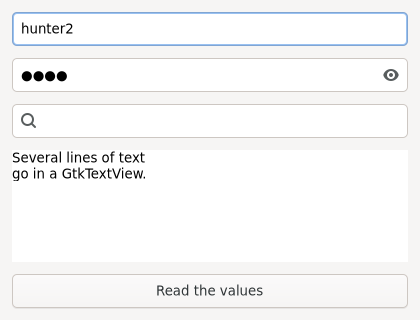
Text entries
entry = Gtk.Entry(placeholder_text="Your name")
entry.connect("activate", lambda e: print("entered:", e.get_text()))
entry.connect("changed", lambda e: print("now:", e.get_text()))
activate fires when the user presses Enter; changed fires on every keystroke,
which is right for live filtering and wrong for anything expensive.
There are specialised entries for the common cases, and they are worth using because they carry the right behaviour with them:
password = Gtk.PasswordEntry(show_peek_icon=True)
search = Gtk.SearchEntry()
search.connect("search-changed", lambda e: print(e.get_text()))
Gtk.SearchEntry debounces — search-changed waits for a pause in typing rather
than firing per keystroke, which is exactly what you want before hitting a database.
Multi-line text is a different widget with a different shape. Gtk.TextView
displays a Gtk.TextBuffer, and the text lives in the buffer:
view = Gtk.TextView(wrap_mode=Gtk.WrapMode.WORD)
view.get_buffer().set_text("Several lines of text\ngo in a GtkTextView.")

scroller = Gtk.ScrolledWindow(vexpand=True)
scroller.set_child(view)
Getting the text back needs the bounds, because a buffer can hand you any range:
buffer = view.get_buffer()
start, end = buffer.get_bounds()
text = buffer.get_text(start, end, False)
The last argument is whether to include invisible characters; you want False.
A text view does not scroll on its own — put it in a Gtk.ScrolledWindow or it
will grow until it pushes everything else off the window.
The full example is examples/gtk4/widgets/entries.py.
Numbers: spin buttons and scales
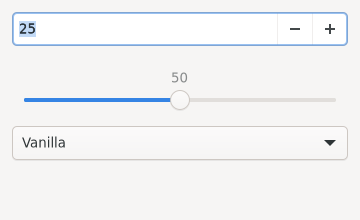
spin = Gtk.SpinButton.new_with_range(0, 100, 1)   # min, max, step
spin.set_value(25)
spin.connect("value-changed", lambda s: print(s.get_value_as_int()))

scale = Gtk.Scale.new_with_range(Gtk.Orientation.HORIZONTAL, 0, 100, 1)
scale.set_draw_value(True)
get_value() returns a float; get_value_as_int() saves you the rounding. Both
widgets are views onto a Gtk.Adjustment, and sharing one adjustment between a
scale and a spin button keeps them in step with no code at all:
adjustment = Gtk.Adjustment(lower=0, upper=100, step_increment=1, value=25)
spin = Gtk.SpinButton(adjustment=adjustment)
scale = Gtk.Scale(orientation=Gtk.Orientation.HORIZONTAL, adjustment=adjustment)
Choices: drop downs
GtkComboBox and GtkComboBoxText are deprecated. Gtk.DropDown replaces them,
and for a fixed list of strings it is a one-liner:
flavours = ["Vanilla", "Chocolate", "Strawberry"]
dropdown = Gtk.DropDown.new_from_strings(flavours)
dropdown.connect(
    "notify::selected",
    lambda d, _p: print("chose:", flavours[d.get_selected()]),
)
get_selected() returns a position, not a value, and returns
Gtk.INVALID_LIST_POSITION when nothing is selected. For anything richer than
strings — a list of objects, a custom row layout, a searchable list — a drop down is
backed by a list model and a factory, the same machinery that drives list views.
That is More GTK 4.
The full example is examples/gtk4/widgets/numbers-and-choices.py.
Menus and actions
Menus are the part of GTK 4 that has changed most, and the change is worth understanding because it pays off everywhere else.
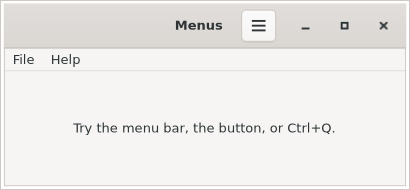
In GTK 3 you built a menu out of widgets and connected each item to a callback. In GTK 4 you describe the menu as a model and implement the behaviour as actions. Nothing in the model names a function; items name actions by string.
def add_action(app, name, callback):
    action = Gio.SimpleAction.new(name, None)
    action.connect("activate", callback)
    app.add_action(action)


add_action(app, "new", lambda *_: print("New"))
add_action(app, "quit", lambda *_: app.quit())
app.set_accels_for_action("app.quit", ["<Control>q"])
Then the model:
menu = Gio.Menu()

file_menu = Gio.Menu()
file_menu.append("New", "app.new")
file_menu.append("Open", "app.open")

quit_section = Gio.Menu()
quit_section.append("Quit", "app.quit")
file_menu.append_section(None, quit_section)   # draws a separator

menu.append_submenu("File", file_menu)
Because the model is just data, the same menu can appear in more than one place:
app.set_menubar(menu)          # a traditional menu bar
window.set_show_menubar(True)

header = Gtk.HeaderBar()       # and a hamburger button, from the same model
header.pack_end(Gtk.MenuButton(icon_name="open-menu-symbolic", menu_model=menu))
window.set_titlebar(header)
The app. prefix on an action name says where the action lives. Actions added to
the application are app.something; actions added to a window are win.something.
Get the prefix wrong and the menu item is simply greyed out — GTK has no way to
tell you that you meant a different scope, so a permanently insensitive menu item
is nearly always a missing or misnamed action.
Set the menu bar in the startup handler, before any window exists:
app.connect("startup", on_startup)   # actions and menubar
app.connect("activate", on_activate) # windows
Actions carry state too, which is how you get checkboxes and radio items in a menu:
action = Gio.SimpleAction.new_stateful(
    "show-sidebar", None, GLib.Variant.new_boolean(True)
)
action.connect("change-state", on_change_state)
The payoff for all this indirection is that one action definition serves the menu
bar, the popover, the keyboard shortcut, a toolbar button and D-Bus remote control
at once. It is more ceremony than connect("activate", ...) for a single menu item
and considerably less for a real application.
The full example is examples/gtk4/widgets/menus.py.
Message dialogs
GtkDialog and GtkMessageDialog are deprecated as of GTK 4.10. Gtk.AlertDialog
replaces them, and it is asynchronous: you hand it a callback and get control
back immediately instead of running a nested main loop and blocking.
def ask_to_delete(window, label):
    dialog = Gtk.AlertDialog()
    dialog.set_message("Delete this file?")
    dialog.set_detail("Once it is gone it is gone. There is no undo.")
    dialog.set_buttons(["Cancel", "Delete"])
    dialog.set_cancel_button(0)    # chosen by Escape
    dialog.set_default_button(1)   # chosen by Enter
    dialog.choose(window, None, on_choice, label)


def on_choice(dialog, result, label):
    try:
        button = dialog.choose_finish(result)
    except GLib.Error:
        label.set_text("Dismissed")   # closed without answering
        return
    label.set_text("Deleted" if button == 1 else "Cancelled")
choose_finish() returns the index into the button list you set, and raises
GLib.Error if the dialog was dismissed rather than answered. That try is not
optional: a user pressing Escape or closing the dialog is the normal case, not an
error case, and an unhandled exception in a callback will not stop your program but
will fill the terminal with tracebacks.
For a notice with a single button there is nothing to wait for:
dialog = Gtk.AlertDialog()
dialog.set_message("Nothing happened")
dialog.show(window)
Passing the parent window matters. It makes the dialog modal for that window, positions it correctly, and — on Wayland — is the only way the compositor knows which window the dialog belongs to.
The same asynchronous shape covers the other dialogs: Gtk.FileDialog,
Gtk.ColorDialog, Gtk.FontDialog all take a callback and a matching
*_finish() that raises on dismissal. File dialogs are in
More GTK 4.
The full example is examples/gtk4/widgets/dialogs.py.
In a libadwaita application, use libadwaita’s
libadwaita 1.5.
Adw.DialogandAdw.AlertDialogneed it.
Gtk.AlertDialog is correct and stays correct. But in an application that is
already using libadwaita, Adw.AlertDialog is the better one, for a reason that
only shows up at phone width: instead of opening a separate floating window it
slides up from the bottom as a sheet inside the parent. Same code, two shapes,
chosen by the space available — the breakpoints idea again, this
time with nothing to configure.
dialog = Adw.AlertDialog(heading="Delete this file?",
                         body="Once it is gone it is gone. There is no undo.")
dialog.add_response("cancel", "Cancel")
dialog.add_response("delete", "Delete")
dialog.set_response_appearance("delete", Adw.ResponseAppearance.DESTRUCTIVE)
dialog.set_default_response("cancel")   # Enter
dialog.set_close_response("cancel")     # Escape, or dismissal
dialog.choose(parent, None, on_choice, label)
Two improvements on the GTK version are worth naming:
Responses are strings, not indices. choose_finish() gives you "delete",
not 1. Insert a button and nothing silently starts meaning something else.
Dismissal is not an error. Gtk.AlertDialog.choose_finish() raises
GLib.Error when the user presses Escape; Adw.AlertDialog.choose_finish()
returns the close response you already named. There is no try to forget.
For a dialog with your own content in it rather than a message and buttons,
subclass Adw.Dialog: set a title, set a child, and present(parent) it.
present() takes any widget, not only a window — libadwaita walks up the tree to
find where the dialog belongs. Adw.PreferencesDialog and Adw.AboutDialog are
the two you get pre-built, and they replace the Adw.PreferencesWindow and
Adw.AboutWindow you will see in older code.
The full example is examples/gtk4/widgets/adw-dialogs.py.
Feedback: toasts instead of a status bar
GtkStatusbar is deprecated and has no direct replacement, because the pattern it
served — a strip of text along the bottom that nobody reads — is not one GNOME
recommends any more.
For transient feedback, libadwaita has Adw.Toast: a message that slides in over
the content, optionally with one button, and goes away on its own.
self.toasts = Adw.ToastOverlay()
self.toasts.set_child(content)

toast = Adw.Toast.new("Saved")
toast.set_button_label("Undo")
toast.connect("button-clicked", lambda _t: print("undo"))
self.toasts.add_toast(toast)
The overlay wraps your content; the toasts appear on top of it. For persistent status — a word count, a connection indicator — put a label in the header bar or a bottom bar, where it belongs to the layout rather than floating over it.
Libadwaita
Everything so far has been plain GTK 4. In practice you will write libadwaita, and the difference is mostly that you stop building layouts by hand.
import gi

gi.require_version("Gtk", "4.0")
gi.require_version("Adw", "1")
from gi.repository import Adw, Gtk


class Window(Adw.ApplicationWindow):
    def __init__(self, **kwargs):
        super().__init__(**kwargs)
        self.set_title("Adwaita Window")
        self.set_default_size(420, 260)

        self.toasts = Adw.ToastOverlay()

        page = Adw.PreferencesPage()
        group = Adw.PreferencesGroup(title="Settings")
        group.add(Adw.SwitchRow(title="Enabled", subtitle="Flip me"))
        group.add(Adw.EntryRow(title="Your name"))
        page.add(group)
        self.toasts.set_child(page)

        toolbar = Adw.ToolbarView()
        toolbar.add_top_bar(Adw.HeaderBar())
        toolbar.set_content(self.toasts)

        self.set_content(toolbar)


app = Adw.Application(application_id="com.example.AdwaitaWindow")
app.connect("activate", lambda a: Window(application=a).present())
sys.exit(app.run(sys.argv))
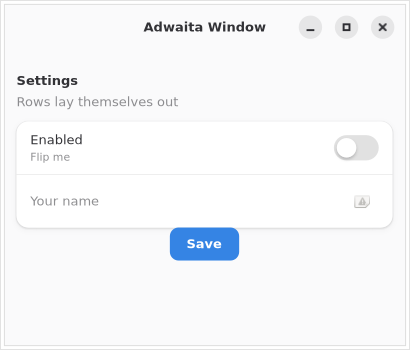
That window has a proper header bar, correctly spaced rows with titles and
subtitles, and a layout that adapts to a phone-sized window — with no margins,
alignments or box nesting written by hand. Adw.SwitchRow is a label, a subtitle
and a switch that already agree about spacing.
Three differences to watch for when you switch:
Adw.Application instead of Gtk.Application — it initialises the libadwaita
stylesheet. Using Gtk.Application with libadwaita widgets gives you widgets that
work and look wrong.
Adw.ApplicationWindow uses set_content(), not set_child(), and it has no
separate titlebar area — the header bar goes inside the content, usually in an
Adw.ToolbarView. This trips up everyone once.
Subclassing is the normal style here. Once a window owns state — a toast overlay, a list model, a file being edited — a class is easier to follow than a nest of closures, and it is what the GNOME examples look like.
The full example is examples/gtk4/adwaita-window.py.
Adaptive layouts
libadwaita 1.4.
Adw.Breakpointneeds it.
A window is not one width. The user drags it narrow, tiles it beside something
else, or runs your application on a phone, and a layout built for 1200 pixels
has to become a layout that works in 400. Doing that by hand — a notify::width
handler, some arithmetic, a pile of set_visible() calls, and a bug where you
forget to put something back — is the wrong approach, and libadwaita replaces it
with a declarative one.
A breakpoint is a condition plus a list of properties to set while it holds:
narrow = Adw.Breakpoint.new(Adw.BreakpointCondition.parse("max-width: 600sp"))
narrow.add_setter(self.split, "collapsed", True)
narrow.add_setter(self.show_sidebar_button, "visible", True)
self.add_breakpoint(narrow)
There is no handler and no arithmetic. While the window is 600sp or narrower the split view is collapsed and the button is visible; when it stops being narrow libadwaita puts the old values back. That last part is what you get wrong writing it yourself, because it means remembering what every property was before you changed it.
Two details in that snippet earn their place:
sp, not px. A scalable pixel is a pixel at the user’s text scaling
factor. Someone running at 125% text size gets a breakpoint that fires at a
proportionally larger real width, which is what you want — the layout is tight
because the content does not fit, and their content is bigger. Conditions can
also be written on height, and combined: max-width: 600sp and max-height: 400sp.
600sp is the conventional divide between a phone-shaped window and a desktop-shaped one. Use it unless your content has an opinion.
The widget being collapsed here is Adw.OverlaySplitView, which is a sidebar
beside the content when there is room and a sidebar sliding over the content
when there is not. Its siblings are worth knowing by name, because between them
they cover most of what a window needs to do at two sizes:
Adw.OverlaySplitView- Sidebar and content. Collapses to an overlay.
Adw.NavigationSplitView- The same, but collapses into a navigation stack — the sidebar becomes a page you go back from, which is the right model for a list that leads to a detail view.
Adw.ViewSwitcherandAdw.ViewSwitcherBar- Tabs in the header bar when wide; a bar along the bottom, thumb-reachable, when
narrow. Set the bar’s
revealfrom a breakpoint and hide the header one. Adw.ToolbarView- Not adaptive itself, but it is what lets a breakpoint move a toolbar from the top to the bottom without rebuilding anything.
The full example is examples/gtk4/adaptive-window.py. Resize the window past
600sp and the sidebar changes behaviour with no code running in between.
Keyboard shortcuts
Menus give you accelerators nearly free, and the reason to do it through actions rather than key handlers is that the action already exists and the menu item already names it:
app.set_accels_for_action("app.save", ["<Control>s"])
app.set_accels_for_action("app.shortcuts", ["<Control>question", "F1"])
The plural is not decoration — an action can have several accelerators, which is how one command answers to both a modern and a legacy key.
For a key that only means something while part of the window has focus, attach a
Gtk.ShortcutController to that widget instead:
controller = Gtk.ShortcutController()
controller.set_scope(Gtk.ShortcutScope.LOCAL)
controller.add_shortcut(Gtk.Shortcut(
    trigger=Gtk.ShortcutTrigger.parse_string("<Control>d"),
    action=Gtk.CallbackAction.new(self.on_duplicate)))
self.add_controller(controller)
Gtk.CallbackAction is the escape hatch that runs a Python function, and the
function must return True to say it handled the key. Return False or fall
off the end and GTK keeps looking for someone else to handle it, which presents
as a shortcut that works only sometimes.
The third part of the job is telling the user the keys exist. Adw.ShortcutsDialog
(libadwaita 1.8) is the standard window for that, bound to <Control>question by
convention:
dialog = Adw.ShortcutsDialog()
section = Adw.ShortcutsSection(title="General")
section.add(Adw.ShortcutsItem(title="Save", accelerator="<Control>s"))
dialog.add(section)
dialog.present(window)
Keep the accelerator strings in one table and build the menu, the bindings and the dialog from it. Three hand-maintained copies of the same list is three chances for the help window to start lying.
The full example is examples/gtk4/shortcuts.py.
Summary
You can now build a GTK 4 application: an application object with an activate handler, a window with a box in it, widgets connected to callbacks, a menu driven by actions, and dialogs that ask questions without blocking.
The things to carry forward:
gi.require_version()before everyfrom gi.repository import ....Gtk.Applicationowns the main loop;activatebuilds windows,startupbuilds actions and menus.- Widgets are visible by default; single-child containers use
set_child(). expandandalignlive on the child, not on theappend()call.- Radio buttons are grouped check buttons.
- Menus are models plus actions, and the action prefix (
app.orwin.) matters. - Dialogs are asynchronous, and their
*_finish()methods raise when dismissed.Adw.AlertDialoguses string responses and does not raise on dismissal. - Reach for libadwaita before you reach for a hand-built layout.
- Adaptive layout is a breakpoint — a condition and some property setters — not a
resize handler. Measure in
sp, and 600sp is the usual divide. - Bind keys to actions with
set_accels_for_action; use aGtk.ShortcutControlleronly for keys that are local to a widget, and returnTruefrom its callback. - A window cannot position itself. Wayland decides, which is why every dialog gets a parent.
GObject is next: properties, signals and bindings, which are what the list widgets in the chapter after it are built on.
If you are porting an existing PyGTK program, Migrating from PyGTK is a translation table for the idioms this chapter replaced.