Chapter 5 · GTK 4 with PyGObject
Drawing with Cairo
Every listing in this chapter is a file under
examples/gtk4/cairo/. They are run on each build, and the figures below are their output rather than screenshots, so the pictures and the code cannot drift apart.
Introduction
Sooner or later no existing widget draws what you need — a chart, a waveform, a seating plan, a game board — and you draw it yourself. Cairo is the library for that: a 2D vector graphics API with paths, fills, strokes, gradients, clipping and transformations, rendering the same drawing to a window, a PNG, a PDF or a printer.
Cairo’s place in GTK has changed, and it is worth being clear about it. GTK 4 does
not paint with Cairo. Widgets build a tree of render nodes and GSK hands that
tree to the GPU. Cairo survives inside Gtk.DrawingArea, which is a widget that
wraps a single Cairo render node — GTK renders your Cairo drawing to a texture and
composites it like anything else.
So there are two ways to draw in GTK 4, and both belong in this chapter:
Cairo, through Gtk.DrawingArea, when the drawing is arbitrary — curves, paths,
text, anything you would describe as illustration. It is also the only option
when the same drawing has to go to a PDF or a printer.
GtkSnapshot, in a custom widget, when the drawing is made of the primitives GSK already knows — rectangles, rounded borders, gradients, shadows, existing textures. It stays on the GPU and stays sharp at any scale.
Most application drawing is Cairo. Most widget drawing is snapshot.
Cairo basics
Two objects do all the work.
A surface is what you draw on. cairo.ImageSurface is a block of pixels in
memory. cairo.PDFSurface, cairo.SVGSurface and cairo.PSSurface write vector
files. GTK gives you a surface for a widget without your asking.
A context is what you draw with. It holds the current colour, line width, font, transformation and clip, and it holds the path you are building.
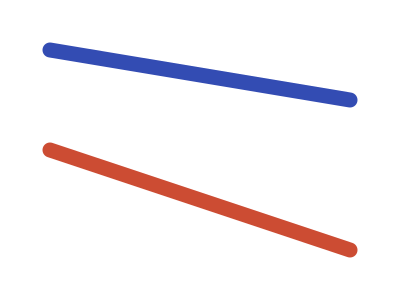
import cairo

surface = cairo.ImageSurface(cairo.FORMAT_ARGB32, 400, 300)
context = cairo.Context(surface)

context.set_source_rgb(1, 1, 1)
context.paint()

context.set_line_width(15)
context.set_line_cap(cairo.LINE_CAP_ROUND)
context.set_source_rgb(0.2, 0.3, 0.7)
context.move_to(50, 50)
context.line_to(350, 100)
context.stroke()

surface.write_to_png("draw-to-png.png")
Colour components run from 0 to 1, not 0 to 255. set_source_rgba() takes an alpha
as well. paint() floods the whole clip region with the current source, which is
the usual way to set a background.
The origin is the top left, y increases downwards, and angles are in
radians with zero pointing right. math.radians() converts if you would
rather think in degrees.
Surface formats
cairo.ImageSurface needs a pixel format:
cairo.FORMAT_ARGB32- 32 bits per pixel: alpha, then red, green, blue, stored native-endian, with
premultiplied alpha. 50% transparent red is
0x80800000, not0x80ff0000. This is the default choice. cairo.FORMAT_RGB24- 32 bits per pixel with the top 8 unused. No transparency, slightly faster.
cairo.FORMAT_A8- 8 bits of alpha and nothing else — a mask.
cairo.FORMAT_A1- 1 bit of alpha, packed 32 to a word.
The same drawing, different surfaces
Because the drawing code only touches the context, retargeting it costs nothing:
def draw(context):
    context.set_source_rgb(0.1, 0.5, 0.3)
    context.rectangle(40, 40, 220, 120)
    context.fill_preserve()      # fill, but keep the path
    context.set_source_rgb(0, 0, 0)
    context.set_line_width(4)
    context.stroke()             # ...so it can be stroked too


png = cairo.ImageSurface(cairo.FORMAT_ARGB32, 300, 200)
draw(cairo.Context(png))
png.write_to_png("surfaces.png")

pdf = cairo.PDFSurface("surfaces.pdf", 300, 200)
draw(cairo.Context(pdf))
pdf.finish()                     # flush and close the file
finish() matters for the file-backed surfaces: without it the file may be empty
or truncated when the program exits.
One thing to watch: the numbers mean different things. On an image surface they are device pixels. On a PDF, SVG or PostScript surface they are points, at 72 to the inch — so a 300×200 PDF is about 106×70 millimetres, not a small picture. This is the same unit the printing chapter uses.
fill_preserve() and stroke_preserve() keep the path so the next operation can
use it. Plain fill() and stroke() clear it, which is what you want most of the
time and a source of confusion the one time you did not.
The full example is examples/gtk4/cairo/surfaces.py.
Drawing in a widget
GTK 2’s expose-event and GTK 3’s draw signal are gone. A Gtk.DrawingArea
takes a draw function:
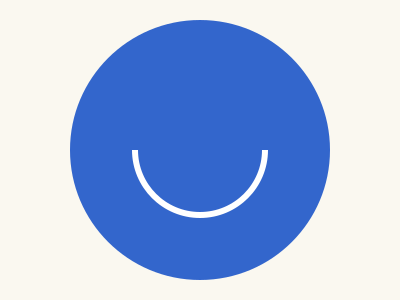
def draw(_area, context, width, height):
    context.set_source_rgb(0.98, 0.97, 0.94)
    context.paint()

    centre_x, centre_y = width / 2, height / 2
    radius = min(width, height) / 2 - 20

    context.set_source_rgb(0.2, 0.4, 0.8)
    context.arc(centre_x, centre_y, radius, 0, 2 * math.pi)
    context.fill()


area = Gtk.DrawingArea()
area.set_draw_func(draw)
area.set_hexpand(True)
area.set_vexpand(True)
The function is handed a context that is already clipped to the widget and has its origin at the widget’s top left, plus the current width and height. Use them. Drawing to sizes you assumed rather than sizes you were given is the single most common bug in custom drawing, and it only shows up when someone resizes the window.
Three rules:
Never call the draw function yourself. Call widget.queue_draw() and let GTK
decide when — it will coalesce several requests into one frame.
Do no work in it. It runs on the frame clock. Loading a file, querying a database or computing a layout inside a draw function makes the whole interface stutter. Compute in advance, draw from the result.
Do not keep the context. It is valid for that one call.
The full example is examples/gtk4/cairo/drawing-area.py.
Paths
Everything Cairo draws is a path: a sequence of lines and curves, which you then stroke or fill.
context.move_to(x, y)                       # start a new sub-path
context.line_to(x, y)                       # straight segment
context.curve_to(x1, y1, x2, y2, x3, y3)    # cubic Bézier: 2 controls, 1 end
context.rel_line_to(dx, dy)                 # ...relative to where you are
context.arc(cx, cy, radius, start, end)     # clockwise
context.arc_negative(cx, cy, radius, start, end)   # anticlockwise
context.rectangle(x, y, width, height)
context.close_path()                        # straight back to the sub-path start
Three things about arc() catch people out:
It continues the current path. If there is already a current point, Cairo draws
a straight line from it to the start of the arc. To start a fresh circle, call
new_sub_path() first — this is why two arc() calls in a row produce two circles
joined by a diagonal.
Angles are radians and zero points right, increasing clockwise (because y points
down). A quarter turn “up” from zero is -math.pi / 2.
An arc under a non-uniform scale becomes an ellipse — which is how you draw one:
scale(1, 0.5) then arc().
Stroking
context.set_line_width(12)
context.set_line_cap(cairo.LINE_CAP_ROUND)    # BUTT, ROUND, SQUARE
context.set_line_join(cairo.LINE_JOIN_ROUND)  # MITER, ROUND, BEVEL
context.set_dash([8, 4], 0)                   # on 8, off 4
context.stroke()
The line width is in user-space units, and it is centred on the path — half either side. A 1-pixel line drawn on an integer coordinate therefore straddles two pixel columns and comes out 2 pixels wide and grey. Offset by a half:
context.move_to(x + 0.5, 0)
context.line_to(x + 0.5, height)
That half pixel is the difference between a crisp grid and a blurry one.
Filling
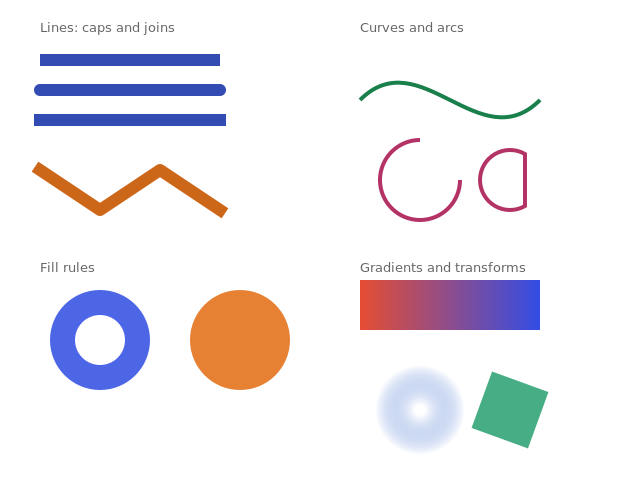
fill() colours the inside of the path, and inside depends on the fill rule:
context.set_fill_rule(cairo.FILL_RULE_EVEN_ODD) # or FILL_RULE_WINDING
WINDING (the default) counts direction: a hole only appears if the inner
sub-path runs the opposite way round. EVEN_ODD counts crossings, so any nested
sub-path punches a hole regardless of direction. The left shape below is even-odd,
the right one winding, and the two circles are drawn identically in both.
Colour and patterns
The source is what fills or strokes put down. It can be a colour or a pattern:
gradient = cairo.LinearGradient(0, 0, 180, 0)
gradient.add_color_stop_rgb(0.0, 0.9, 0.3, 0.2)
gradient.add_color_stop_rgb(1.0, 0.2, 0.3, 0.9)
context.set_source(gradient)
context.rectangle(0, 0, 180, 50)
context.fill()

radial = cairo.RadialGradient(60, 130, 5, 60, 130, 45)
radial.add_color_stop_rgba(0, 1, 1, 1, 1)
radial.add_color_stop_rgba(1, 0.2, 0.4, 0.8, 0)   # fade out to transparent
Gradient coordinates are in user space, not in the shape — the gradient is
positioned on the canvas and the fill reveals part of it. Move the shape without
moving the gradient and the colours change. Wrapping both in translate() is
usually what you meant.
cairo.SurfacePattern uses another surface as the source, which is how you tile an
image or draw one drawing into another.
Transformations and state
context.translate(x, y)
context.rotate(math.radians(20))
context.scale(sx, sy)
These change user space for everything drawn afterwards, and they compose — rotate after translate rotates about the new origin, which is nearly always what you want and the reverse of what you get if you write them the other way round.
Because the transform is part of the context state, and so are the colour, line
width, font and clip, save() and restore() are how you avoid leaking one part of
a drawing into the next:
context.save()
context.translate(150, 130)
context.rotate(math.radians(20))
context.rectangle(-30, -30, 60, 60)
context.fill()
context.restore()
They nest. Any drawing routine that changes state should bracket itself this way, or callers end up debugging a rotation they did not ask for.
The full example is examples/gtk4/cairo/paths-and-fills.py.
Text
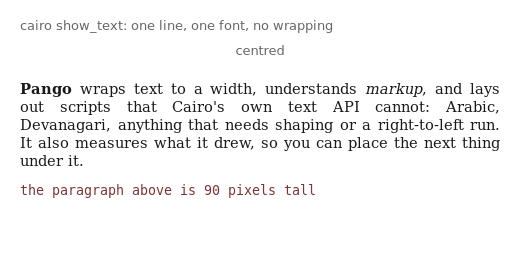
Cairo has a text API, and its own documentation calls it a toy:
context.select_font_face("sans-serif", cairo.FONT_SLANT_NORMAL,
                         cairo.FONT_WEIGHT_NORMAL)
context.set_font_size(13)
context.move_to(20, 30)
context.show_text("one line, one font, no wrapping")

extents = context.text_extents("centred")
context.move_to(width / 2 - extents.width / 2, 55)
context.show_text("centred")
It is genuinely fine for an axis label on a chart. It cannot wrap text, cannot mix fonts, cannot shape Arabic or Devanagari, and cannot lay out a right-to-left run. For anything a user will read, use Pango:
import gi
gi.require_version("Pango", "1.0")
gi.require_version("PangoCairo", "1.0")
from gi.repository import Pango, PangoCairo

layout = PangoCairo.create_layout(context)
layout.set_width(480 * Pango.SCALE)
layout.set_wrap(Pango.WrapMode.WORD)
layout.set_justify(True)
layout.set_font_description(Pango.FontDescription("Serif 11"))
layout.set_markup("<b>Pango</b> wraps text to a width and understands <i>markup</i>.")

context.move_to(20, 80)
PangoCairo.show_layout(context, layout)

_, height = layout.get_pixel_size()   # what it actually took
Two things to remember. Pango measures in Pango units, 1024 to the point, hence
the * Pango.SCALE; get_pixel_size() gives you pixels back. And
layout.set_markup() takes the same Pango markup as a label, so the same warning
applies — escape anything you did not write with GLib.markup_escape_text().
The full example is examples/gtk4/cairo/text-with-pango.py.
Antialiasing
Antialiasing softens the stair-stepping that comes from approximating a curve with square pixels. It is on by default, it costs almost nothing, and turning it off is nearly always a mistake:
context.set_antialias(cairo.ANTIALIAS_NONE)
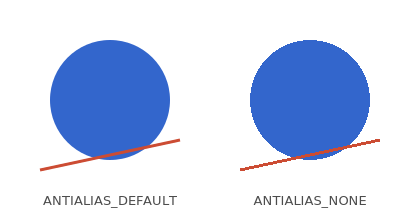
Straight horizontal and vertical lines look identical either way — the difference is entirely in the curves and the diagonal. The one legitimate use is drawing something that must be pixel-exact, such as a colour picker where a blended edge would report the wrong value. If a line looks blurry, the fix is the half-pixel offset from the stroking section, not switching antialiasing off.
The full example is examples/gtk4/cairo/antialias.py.
Making it interactive
A drawing becomes a widget when it responds to input. That needs an event
controller for the input and queue_draw() for the repaint:
class Sketch(Gtk.DrawingArea):
    def __init__(self):
        super().__init__()
        self.points = []
        self.set_draw_func(self.on_draw)

        click = Gtk.GestureClick()
        click.connect("pressed", self.on_pressed)
        self.add_controller(click)

        motion = Gtk.EventControllerMotion()
        motion.connect("motion", self.on_motion)
        self.add_controller(motion)

    def on_pressed(self, gesture, n_press, x, y):
        if n_press == 2:
            self.points.clear()
        else:
            self.points.append((x, y))
        self.queue_draw()
The coordinates handed to a controller are already relative to the widget, in
the same space the draw function uses, so a click at (x, y) lands where you draw
at (x, y). There is no gtk.EventBox to wrap and no add_events() to call —
controllers attach to any widget.
n_press counts clicks, so double-click handling needs no timer.
The full example is examples/gtk4/cairo/interactive.py.
Beyond Cairo: GtkSnapshot
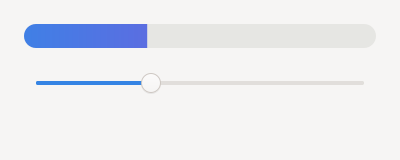
For a widget whose appearance is made of shapes GSK already knows, skip Cairo and
build render nodes directly. Override do_snapshot():
class Meter(Gtk.Widget):
    __gtype_name__ = "Meter"

    def do_snapshot(self, snapshot):
        width, height = self.get_width(), self.get_height()

        track = Graphene.Rect().init(0, 0, width, height)
        filled = Graphene.Rect().init(0, 0, width * self.fraction, height)

        radius = Graphene.Size().init(height / 2, height / 2)
        rounded = Gsk.RoundedRect()
        rounded.init(track, radius, radius, radius, radius)

        snapshot.push_rounded_clip(rounded)
        snapshot.append_color(rgba(0.9, 0.9, 0.89), track)
        snapshot.append_linear_gradient(
            filled,
            Graphene.Point().init(0, 0),
            Graphene.Point().init(width, 0),
            [color_stop(0.0, rgba(0.25, 0.5, 0.9)),
             color_stop(1.0, rgba(0.55, 0.3, 0.85))],
        )
        snapshot.pop()
Every push_* needs a matching pop(), and GTK warns loudly at runtime if they do
not balance.
Boxed types are a small trap here. Gdk.RGBA and Gsk.ColorStop are constructed
empty and filled in, not built from keyword arguments:
def rgba(red, green, blue, alpha=1.0):
    colour = Gdk.RGBA()
    colour.red, colour.green, colour.blue, colour.alpha = red, green, blue, alpha
    return colour
Gdk.RGBA(red=..., ...) is accepted and silently ignores every argument, which
produces a transparent black widget and no error at all.
Snapshot drawing is worth reaching for when the widget is many small pieces, when it redraws every frame, or when it must stay sharp on a scaled display. For a chart, Cairo is less code and no slower in practice.
The full example is examples/gtk4/cairo/snapshot-widget.py.
Summary
- Cairo draws onto a surface with a context; the same drawing code retargets to a PNG, a PDF, an SVG or a printer by changing only the surface.
- Colours are 0 to 1, the origin is top left, angles are radians, and vector surfaces measure in points.
Gtk.DrawingArea.set_draw_func()is whereexpose-eventwent. Draw to the width and height you are given, do no work in it, and callqueue_draw()to ask for a repaint.- Build a path, then stroke or fill it.
arc()continues the current path — usenew_sub_path(). Offset thin lines by half a pixel. - Cairo’s text API is for labels; Pango is for text people read.
- For widget chrome made of rectangles and gradients,
do_snapshot()keeps the drawing on the GPU.
Custom Widgets is next, and picks up where the snapshot section here leaves off.