Chapter 7 · GTK 4 with PyGObject
Printing
Every listing in this chapter is a file under
examples/gtk4/printing/. They are run on each build, and the printed page below is the actual output of one of them.
Introduction
Printing in GTK is Drawing with Cairo with a
different surface and a small amount of paperwork. Gtk.PrintOperation handles the
paperwork — talking to CUPS, showing the print dialog, running the preview — and
then hands you a Cairo context and asks you to draw a page.
That is the whole idea. If you can draw it on screen you can print it, and the drawing code often transplants unchanged.
There are two printing APIs in GTK 4, and they are for different jobs:
Gtk.PrintOperation- The high-level one. It paginates, drives the dialog and the preview, and calls you back per page. Use it whenever your program is generating the pages.
Gtk.PrintDialog- Added in GTK 4.14. Asynchronous, like the other new dialogs, and it prints a file or a stream you already have. Use it when you already hold a finished PDF and only need the user to pick a printer.
This chapter is about the first one.
The shape of a print job
A job runs in three acts, each a signal:
begin-print- The printer and the page setup are settled, so you can finally ask how big a
page is. Work out how many pages there are and call
set_n_pages(). draw-page- Called once per page, in order, with a Cairo context and a page number.
end-print- Let go of whatever
begin-printset up.
operation = Gtk.PrintOperation()
operation.set_job_name("How printing works")
operation.set_unit(Gtk.Unit.POINTS)

operation.connect("begin-print", document.on_begin_print)
operation.connect("draw-page", document.on_draw_page)
operation.connect("end-print", document.on_end_print)

result = operation.run(Gtk.PrintOperationAction.PRINT_DIALOG, window)
run() takes what to do and a parent window:
PRINT_DIALOG— ask the user, then print.PRINT— print with the current settings, no dialog.PREVIEW— open the preview.EXPORT— write a file, no dialog and no printer. Needsset_export_filename()first.
and returns APPLY if the job went ahead, CANCEL if the user backed out,
IN_PROGRESS for an asynchronous job, or ERROR. Check for ERROR — a print job
can fail for reasons that have nothing to do with your code.
One line you need before any of it works
gi.require_foreign("cairo")
context.get_cairo_context() converts a C cairo_t into a cairo.Context, and
that conversion lives in a separate PyGObject module — python3-gi-cairo on
Debian and Ubuntu. Without it the call fails with
TypeError: Couldn't find foreign struct converter for 'cairo.Context'
inside your draw handler, where GTK swallows the exception, prints it, and
carries on producing blank pages. gi.require_foreign("cairo") moves the failure to
the top of the file where it is obvious. It is worth adding to anything that draws.
Exporting a PDF
The quickest way to develop printing code is not to print. Export instead:
operation = Gtk.PrintOperation()
operation.set_n_pages(3)
operation.set_unit(Gtk.Unit.POINTS)
operation.set_export_filename("print-to-pdf.pdf")
operation.connect("draw-page", on_draw_page)

result = operation.run(Gtk.PrintOperationAction.EXPORT, None)
No dialog, no printer, no window — the parent can be None. Nothing about the
drawing changes when a real printer is involved later, so this is also how the
examples in this chapter are tested and how the figure below was made.
It doubles as a feature. “Export as PDF” is worth having in any program that can print, and it costs one enum.
Drawing a page
def on_draw_page(_operation, context, page_number):
    cr = context.get_cairo_context()
    width = context.get_width()
    height = context.get_height()
The context has already been set up for you, and the three details that follow from that are the ones people get wrong:
The origin is the printable area, not the paper. Margins are already
subtracted, so (0, 0) is the top left of the area you may draw in, and
get_width() and get_height() are that area’s size. Drawing at negative
coordinates to “reach the edge” is not how you get a full-bleed page — that is
set_use_full_page(True).
The units are what you asked for. set_unit(Gtk.Unit.POINTS) gives points,
72 to the inch, which is what Cairo and Pango both think in. Gtk.Unit.MM and
Gtk.Unit.INCH are there if your layout is specified in physical units.
The default, Gtk.Unit.NONE, gives device units — pixels at the printer’s
resolution — which will be 600 dpi on a laser printer and make a 12-point font
microscopic.
The resolution is not the screen’s. context.get_dpi_x() tells you the real
figure. For text, do not do this arithmetic at all: use
context.create_pango_layout(), which returns a layout already set up for the
printer’s resolution.
Text on a page is Pango, exactly as in the drawing chapter:
title = context.create_pango_layout()
title.set_font_description(Pango.FontDescription("Sans Bold 14"))
title.set_text(f"Quarterly report — page {page_number + 1}", -1)
cr.move_to(0, 0)
PangoCairo.show_layout(cr, title)

_, title_height = title.get_pixel_size()
cr.move_to(0, height - footer_height)      # position the footer from the bottom
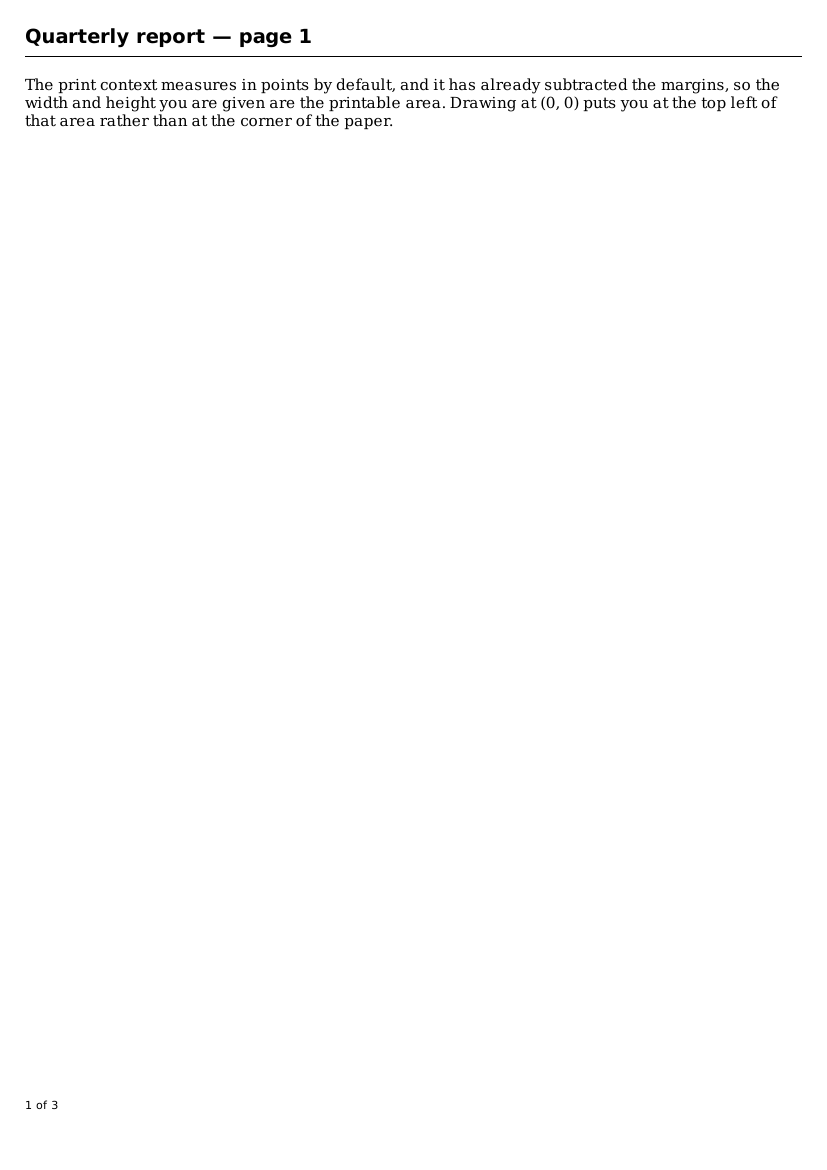
The full example is examples/gtk4/printing/print-to-pdf.py.
Pagination
You cannot count pages before you know the paper size, and you do not know the
paper size until the user has chosen one. That is what begin-print is for:
def on_begin_print(self, operation, context):
    layout = context.create_pango_layout()
    layout.set_font_description(FONT)
    layout.set_text("Ag", -1)
    _, self.line_height = layout.get_pixel_size()

    usable = context.get_height() - self.line_height * 3    # header and footer
    self.lines_per_page = max(1, int(usable // self.line_height))

    pages = -(-len(TEXT) // self.lines_per_page)            # ceiling division
    operation.set_n_pages(pages)
Measure a representative string to get a line height rather than assuming one from the point size — the two are not the same, and the difference accumulates down a page.
Whatever begin-print measures has to be kept for draw-page to use, which is why
the example puts both on a small Document object rather than in globals. Each job
gets its own.
Fixed line heights are a simplification. Real pagination has to measure each
paragraph, keep a heading with the text under it, and avoid leaving one line of a
paragraph stranded at the bottom of a page. Pango can tell you all of that —
layout.get_iter() walks a layout line by line — but the shape of the job does not
change.
If pagination is genuinely expensive, set_n_pages(-1) in begin-print and use the
paginate signal instead: GTK calls it repeatedly, you do a little work each time
and return False until you are finished, and the interface stays responsive.
Page setup and settings
Two objects carry the user’s choices, and they are different things:
Gtk.PageSetup- The paper: size, orientation, margins. Changed with the page setup dialog.
Gtk.PrintSettings- The job: which printer, how many copies, duplex, quality, page range.
self.page_setup = Gtk.print_run_page_setup_dialog(self, self.page_setup, self.settings)

operation.set_default_page_setup(self.page_setup)
operation.set_print_settings(self.settings)
operation.set_embed_page_setup(True)     # let the print dialog change it too
Gtk.print_run_page_setup_dialog() blocks and hands back a new page setup —
it does not modify the one you passed in, so assign the result.
Keep both between jobs, or every print starts from scratch:
if result == Gtk.PrintOperationResult.APPLY:
    self.settings = operation.get_print_settings()
To remember them between runs of the program, both objects serialise to a key file:
settings.to_file(path)
settings = Gtk.PrintSettings.new_from_file(path)
Gtk.PaperSize knows the standard sizes by name — Gtk.PAPER_NAME_A4,
Gtk.PAPER_NAME_LETTER — and Gtk.PaperSize.get_default() picks the right one
for the user’s locale. Hard-coding either A4 or Letter is a good way to annoy half
your users.
The full example is examples/gtk4/printing/print-a-document.py.
Under a sandbox
Inside Flatpak your process cannot see CUPS. It does not have to:
Gtk.PrintOperation is routed through the print portal, which shows the
dialog outside the sandbox and takes the finished document back. The code is
identical and there is nothing to add.
The one visible difference is that a job may complete asynchronously, so run()
can return IN_PROGRESS. Connect to done if you need to know when it actually
finished:
operation.connect("done", lambda op, result: print("finished:", result))
Summary
Gtk.PrintOperationruns the job:begin-printcounts the pages,draw-pagedraws each one,end-printcleans up.gi.require_foreign("cairo")at the top, orget_cairo_context()fails inside your handler and prints blank pages.- Export to PDF while developing: it needs no printer, no dialog and no window, and the drawing code is identical.
- The context’s origin is the printable area, and
set_unit(Gtk.Unit.POINTS)is almost always the unit you want. - Use
context.create_pango_layout()for text — it is already at the printer’s resolution. Gtk.PageSetupis the paper,Gtk.PrintSettingsis the job. Keep both between jobs, and save them to a file to keep them between runs.
Desktop Integration is next: settings, desktop files, portals and the rest of making a program part of the desktop rather than a window floating on it.