Chapter 11 · GTK 4 with PyGObject
Animation and Transitions
Every listing in this chapter is a file under
examples/gtk4/animation/. They are run on each build, so if one of them stops working the build says so.
Introduction
The previous edition of this book had a chapter on Clutter — a separate scene graph, with its own actors, its own stage and its own animation framework, bolted onto a GTK window. That is not how any of this works now.
Clutter is gone. It was folded into GNOME’s compositor, deprecated as a public library, and the parts an application actually needed came back inside GTK 4. GTK now has a GPU-backed scene graph of its own (GSK), a frame clock, transforms on every widget, and — through libadwaita — a proper animation API. There is nothing left to bolt on.
So this chapter is about four ways to make something move, in the order you should reach for them:
- Let a container do it. Stacks, revealers and navigation views animate their own changes.
- CSS. Transitions and keyframes, for anything that is really a style change.
Adw.Animation. Timed or spring-driven, when you are animating a value.- The frame clock. When you are drawing every frame yourself.
Most applications never get past the first two.
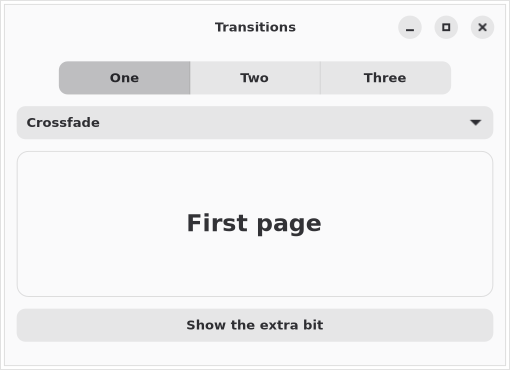
Transitions you get for free
Nearly all the motion in a well-behaved GTK application is a container animating its own state change.
stack = Gtk.Stack()
stack.set_transition_duration(400)
stack.set_transition_type(Gtk.StackTransitionType.CROSSFADE)
stack.add_titled(first_page, "one", "One")
stack.add_titled(second_page, "two", "Two")
Changing the visible child now animates. The types include CROSSFADE,
SLIDE_LEFT_RIGHT, SLIDE_UP_DOWN, OVER_UP and a rotation, and
Gtk.StackSwitcher or Adw.ViewSwitcher will drive the stack for you.
Gtk.Revealer does the same for showing and hiding one thing:
revealer = Gtk.Revealer()
revealer.set_transition_type(Gtk.RevealerTransitionType.SLIDE_DOWN)
revealer.set_transition_duration(300)
revealer.set_child(extra_controls)

toggle.bind_property("active", revealer, "reveal-child",
                     GObject.BindingFlags.SYNC_CREATE)
That bind_property is worth noticing: the revealer’s state is a property, so
there is no handler to write at all.
libadwaita adds more of the same idea — Adw.NavigationView for
push-and-pop navigation, Adw.OverlaySplitView for a sidebar that slides away on a
narrow window, Adw.Carousel for swipeable pages. All animated, none of it your
code.
The full example is examples/gtk4/animation/transitions.py.
CSS
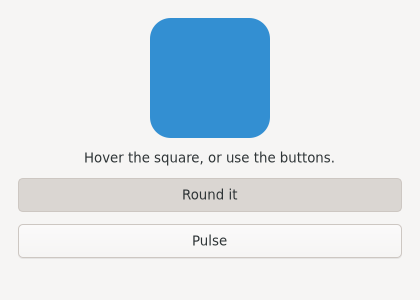
GTK styles its widgets with a subset of CSS, and that subset includes transitions and keyframe animations. For anything that is really a style change, this is the least code:
.swatch {
    background: #3584e4;
    border-radius: 12px;
    transition: background 400ms ease-in-out,
                border-radius 400ms ease-in-out;
}

.swatch:hover      { background: #813d9c; }
.swatch.round      { background: #2ec27e; border-radius: 60px; }

@keyframes pulse {
    from { opacity: 1;    }
    50%  { opacity: 0.35; }
    to   { opacity: 1;    }
}

.pulsing { animation: pulse 1.2s ease-in-out infinite; }
Load it once, onto the display rather than onto a widget:
provider = Gtk.CssProvider()
provider.load_from_data(CSS)
Gtk.StyleContext.add_provider_for_display(
    Gdk.Display.get_default(), provider,
    Gtk.STYLE_PROVIDER_PRIORITY_APPLICATION,
)
After that, animating is widget.add_css_class("round") and
widget.remove_css_class("round"). The hover state costs nothing at all.
Two things to know. GTK’s CSS is a subset — there is no layout in it, no
display, no float, no positioning; it styles widgets that GTK has already laid
out. And the property names are GTK’s, so it is worth reading the GTK CSS
documentation rather than assuming the web’s.
The GTK Inspector (GTK_DEBUG=interactive python3 app.py) has a CSS editor that
applies changes live, which turns styling from a compile-and-look loop into
something interactive.
The full example is examples/gtk4/animation/css-animation.py.
AdwAnimation
When you are animating a value rather than a style, libadwaita has the API. An animation is three things: a widget, to borrow a frame clock from; a range of values; and a target that receives each value.
animation = Adw.TimedAnimation.new(
    widget, 0, 380, 900,                            # from, to, milliseconds
    Adw.CallbackAnimationTarget.new(self.on_value),
)
animation.set_easing(Adw.Easing.EASE_IN_OUT_CUBIC)
animation.play()
There are two kinds of target, and the second one is the reason to like this API:
Adw.CallbackAnimationTarget.new(fn)                    # fn(value) every frame
Adw.PropertyAnimationTarget.new(widget, "opacity")     # no callback at all
A property target writes straight to a GObject property, so fading a widget is an animation object and nothing else.
Adw.TimedAnimation has a fixed duration and an easing curve — around thirty of
them, from LINEAR through EASE_IN_OUT_CUBIC to EASE_OUT_BOUNCE. It can also
repeat and alternate, which covers “flash twice” in one object:
animation.set_alternate(True)
animation.set_repeat_count(2)
Adw.SpringAnimation has no duration. It simulates a spring and runs until it
settles:
Adw.SpringAnimation.new(
    widget, 0, 380,
    Adw.SpringParams.new(0.6, 1, 180),    # damping ratio, mass, stiffness
    target,
)
A damping ratio below 1 overshoots and wobbles; exactly 1 is critically damped and
arrives as fast as it can without overshooting; above 1 crawls in. Springs are the
right choice for anything the user is dragging, because a spring can be handed a
starting velocity — set_initial_velocity() — and continue naturally from the
gesture that started it. That is why a flicked list decelerates the way it does.
The done signal fires when an animation finishes:
animation.connect("done", lambda _a: self.status.set_text("finished"))
Calling play() on a running animation restarts it. pause(), resume(),
reset() and skip() do what they say, and skip() jumps straight to the end
value while still emitting done — which is the correct way to cancel, because
whatever the animation was setting ends up where it was going.
The full example is examples/gtk4/animation/adwaita-animations.py.
The frame clock
For a drawing that changes every frame — a visualiser, a game, a clock with a sweeping second hand — you want the frame clock directly:
def on_tick(self, widget, frame_clock):
    now = frame_clock.get_frame_time()          # microseconds, monotonic
    if self.start_time is None:
        self.start_time = now

    self.phase = ((now - self.start_time) % PERIOD_US) / PERIOD_US
    widget.queue_draw()
    return GLib.SOURCE_CONTINUE

widget.add_tick_callback(on_tick)
Do not animate with GLib.timeout_add(16, ...). A timeout is not synchronised
with the display: frames land slightly early or late, and the result judders in a
way that is hard to see in a screenshot and obvious in motion. The frame clock’s
get_frame_time() is the time the frame will be displayed, which is what makes
motion smooth.
Compute position from elapsed time, never by adding a step per frame. A frame can be dropped, and a per-frame increment turns a dropped frame into a permanent drift; deriving the position from the clock makes a dropped frame invisible.
The callback runs until it returns GLib.SOURCE_REMOVE, and stops on its own when
the widget is unmapped. Keep the id from add_tick_callback() if you want to stop
it yourself with remove_tick_callback().
The full example is examples/gtk4/animation/frame-clock.py.
Moving a whole widget
Every widget has a transform, applied by its parent when it is snapshotted. To
move, rotate or scale one without touching its layout, override do_snapshot()
and transform the snapshot before chaining up:
def do_snapshot(self, snapshot):
    snapshot.save()
    snapshot.translate(Graphene.Point().init(self.offset, 0))
    snapshot.rotate(self.angle)
    Gtk.Widget.do_snapshot(self, snapshot)
    snapshot.restore()
Combine that with an Adw.CallbackAnimationTarget that sets self.angle and
calls queue_draw(), and you have any transform animation you like — running on
the GPU, with no re-layout, at any scale factor.
This is what Clutter’s actors were for, and it is now three lines in a widget you already have.
Respecting the user
Some people get motion sickness from animated interfaces, and every desktop has a setting for it. Honour it.
GTK’s own transitions already do. If you write your own, check:
settings = Gtk.Settings.get_default()
if settings.get_property("gtk-enable-animations"):
    animation.play()
else:
    animation.skip()          # jump to the end value, no motion
skip() rather than not playing, so whatever the animation was setting still ends
up where it should be.
In CSS, the same preference is the media query browsers use:
@media (prefers-reduced-motion: reduce) {
    .swatch  { transition: none; }
    .pulsing { animation: none; }
}
Two more habits worth keeping. Animation durations belong in the 150–400 ms range; anything slower stops feeling responsive and starts feeling broken. And never animate something the user is waiting on — a spinner during a two-second load is fine, a 600 ms slide before a menu opens is not.
Colour scheme, accent and contrast
Reduced motion is one of four preferences in this area, and the other three are
about appearance rather than movement: whether the interface is dark, which
accent colour the user picked, and whether they need higher contrast. All three
arrive through Adw.StyleManager, and libadwaita applies all three to its own
widgets without you doing anything.
style = Adw.StyleManager.get_default()

style.get_dark()                          # is the interface dark right now
style.get_accent_color()                  # Adw.AccentColor, since 1.6
style.get_high_contrast()
style.get_system_supports_color_schemes() # False on a desktop that has no setting
Each is a property, so each has a notify:: signal, and connecting to those three
signals is the entire job of “responding to the theme”. There is nothing to poll:
for property_name in ("dark", "accent-color", "high-contrast"):
    style.connect(f"notify::{property_name}", self.on_style_changed)
The default is to follow the desktop, and the default is correct.
Adw.ColorScheme.DEFAULT means “whatever the user’s session says”. If you offer a
preference at all, offer three states — system, light, dark — with system
selected, and store the choice in GSettings.
An application that opens dark on a light desktop because its author prefers dark
is an application that has substituted its taste for the user’s.
style.set_color_scheme(Adw.ColorScheme.DEFAULT)      # follow the desktop
style.set_color_scheme(Adw.ColorScheme.FORCE_DARK)   # the user asked for dark
The PREFER_ variants are requests the desktop may decline; the FORCE_ ones are
not. Use FORCE_ for an explicit user choice and DEFAULT for everything else.
What this means for anything you drew yourself
The stylesheet reaches widgets. It does not reach a Gtk.DrawingArea, a Cairo
chart or a custom snapshot(), and that is where theme support usually breaks: a
window that goes dark around a graph that stays white.
Two rules cover it. Repaint when the theme changes — queue_draw() from the
notify:: handler above. And take your colours from the theme rather than
hardcoding them:
rgba = style.get_accent_color().to_standalone_rgba()
cr.set_source_rgba(rgba.red, rgba.green, rgba.blue, rgba.alpha)
to_standalone_rgba() rather than the raw accent, because it returns the colour
adjusted for the current light or dark background — the brand blue is not legible
on both. For the ordinary foreground and background, look up the named colours
with widget.get_color() and the CSS variables libadwaita defines
(--accent-bg-color, --window-fg-color and the rest) instead of picking greys
by eye.
High contrast is the one people skip, and it is the one with a legal shape in some
markets. When get_high_contrast() is true, drop decorative low-contrast fills
and give things borders.
The full example is examples/gtk4/animation/style-manager.py.
Summary
- Clutter is gone. GTK 4 has the scene graph, the frame clock and the transforms; libadwaita has the animation API.
- Reach for a container transition first, CSS second,
Adw.Animationthird, the frame clock last. Adw.PropertyAnimationTargetanimates a GObject property with no callback at all.- Springs take an initial velocity, which is what makes gesture-driven motion feel continuous.
- Use
add_tick_callback(), not a 16 ms timeout, and derive position from elapsed time rather than accumulating per frame. - Transform a whole widget by transforming its snapshot before chaining up.
- Check
gtk-enable-animationsandprefers-reduced-motion, and cancel withskip(). Adw.StyleManagerreports dark, accent and high contrast as properties. Connect to theirnotify::signals; do not poll.- Follow the desktop’s colour scheme by default; a preference has three states, not two.
- Anything you draw yourself has to repaint on a theme change and take its colours
from the theme.
to_standalone_rgba()gives an accent that works on both backgrounds.
Embedding Web Content is next.